
You can choose which text message notifications for prescriptions you receive when your pharmacy offers preference controls. You can also opt out by replying “STOP” or “UNSUBSCRIBE.” Prescription texts may share status updates and pickup reminders, but the available options depend on the pharmacy’s notification system.
That flexibility matters: useful updates can save you a call, while messages you don’t need can quickly become noise. To get started, ask your pharmacy how to enroll and manage your preferences. You don’t need a special application to receive prescription notifications, and some services let you choose a convenient time for pickup reminders.
This guide explains how to set up alerts, choose useful messages, and turn them off when your preferences change. You’ll also learn what prescription texts may contain, how to view prescription details, and why phone calls and in-person conversations should remain options. A few clear choices can make pharmacy updates more useful without turning your phone into another source of clutter.
Key Takeaways
- Enroll through your pharmacy’s available process and choose a convenient time for pickup reminders.
- Set notification preferences around the updates you find useful, while keeping phone and in-person communication options accessible.
- Reply “STOP” or “UNSUBSCRIBE” to opt out of text alerts when you no longer want them.
- Clear prescription status updates can help reduce routine calls by giving patients another way to learn what’s happening.
- Explore how pharmacy management software and patient mobile tools can support a more organized notification workflow.
How do I set up prescription reminders and text alerts?
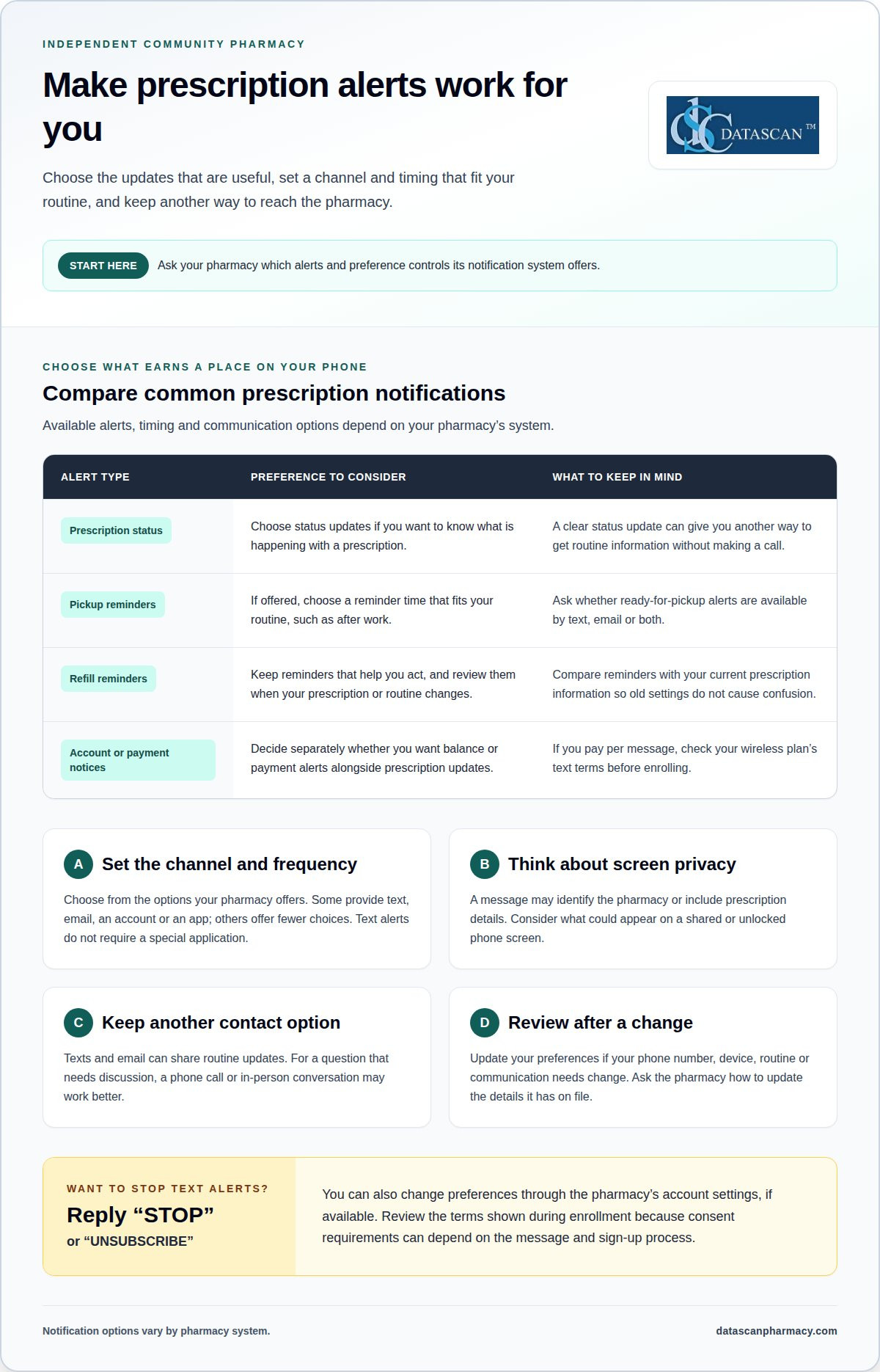
Follow your pharmacy’s enrollment process, then confirm your phone number and notification preferences. Text message notifications for prescriptions may include status updates, pickup reminders and, when offered, account or payment notices.
-
Enroll in Prescription Text Alerts
Choose your pharmacy’s sign-up method and enter the mobile number you want to use. For CVS, check your CVS account’s communication preferences or ask pharmacy staff about enrollment, then follow the prompts shown for your account. iPhone 6+ and Android 24+ devices can receive prescription notifications without a special application. Patients must be over 18 years of age to participate.
-
Troubleshoot Delayed or Missing Alerts
Confirm the phone number on your pharmacy account, then check your device’s blocked senders and message filters. Make sure your phone can receive texts and the pharmacy has your current contact details. If an alert still doesn’t arrive, ask the pharmacy to review your enrollment and prescription status. Don’t rely on a text alone when you need timely information.
- Enable the reminder and status categories that fit your routine. Some services text enrolled patients when a medication is electronically prescribed. You may be able to schedule a pickup reminder for a convenient time, such as after work. Ask whether the pharmacy sends ready-for-pickup alerts by text, email or both, since options vary by system.
- Review account and payment notices separately from prescription updates. If the pharmacy offers balance or payment alerts, decide whether you want them alongside pickup reminders. Enrollment terms and your wireless plan determine whether charges apply. Check your plan’s text terms before signing up, especially if you pay per message.
- Consider what could appear on your phone’s lock screen before enabling alerts. Messages may identify the pharmacy, include directions or a call option, and sometimes show prescription details or educational content. On a shared or unlocked device, others may see the message. Patients verify their identity with a date of birth before logging in to view prescription details. Language options depend on the pharmacy’s notification system.
- Choose text message notifications for prescriptions when you want pharmacy updates sent to your mobile number. Set pickup reminders for a convenient time, and keep another contact option available if a message doesn’t answer your question. Review your preferences whenever your phone number or communication needs change.
How can I manage my prescription notification preferences?
Choose which prescription updates help you take action, then set their frequency and communication channel. Your pharmacy determines the available options and should document your preferences or permissions. Review them when your routines or prescriptions change, so pickup alerts and refill reminders remain useful rather than adding unnecessary messages.
- Start by listing the updates you want: prescription status, pickup reminders, refill reminders or account notices. Separate information you need to act on from updates you can get another way. A short list makes it easier to choose preferences that fit your day.
- Choose a useful frequency for each type of alert. A pickup update may help as soon as the prescription is ready, while repeated reminders could become distracting. Ask how often each category is sent, then choose from the options your pharmacy offers. Timing and frequency depend on the pharmacy’s system.
- Choose a communication channel that works for you. Some pharmacies offer text, email, an account or an app, while others provide fewer choices. You don’t have to receive every update through the same channel. For example, you could choose texts for pickup and email for account information, if available.
- Tell the pharmacy which permissions and preferences apply to your account. Pharmacies determine which notifications are appropriate, how often to send them, and which communication preferences or permissions to document. If a caregiver helps manage messages, clarify whose contact details should receive updates and what information that person may handle.
- Review medication reminders regularly to make sure they still match your current prescription. A changed dose or schedule can make an old reminder confusing. Compare the reminder with your current prescription information, and update the alert settings through the pharmacy’s available process. Keep reminders aligned with the current directions.
- Keep another communication route available for questions that need discussion. Texts and email can share routine updates, but a phone call or in-person conversation may work better when you need an explanation. Pharmacies should offer multiple channels rather than require everyone to use an app, email or text. Choose what suits you.
- Revisit your preferences after a change in routine, device or contact information. A new phone number can interrupt delivery, while a new schedule may change which reminders are useful. Update your recorded communication preferences through the pharmacy’s available process, then review which alerts you still want.
How can I opt out of prescription text alerts?
Reply “STOP” or “UNSUBSCRIBE” to a prescription alert, or change preferences through the pharmacy’s account settings. Consent requirements can depend on the message and enrollment process, so review the terms presented when you sign up.
- Open a recent message from your pharmacy and follow its opt-out instructions. Reply “STOP” or “UNSUBSCRIBE” to stop text notifications. Use the exact keyword shown if the message specifies one. Keep the message until you see whether the pharmacy sends a confirmation.
- Decide whether you want to stop all texts or only a specific category. Some services let you manage pickup updates and refill reminders separately. If the message doesn’t explain how to adjust categories, use the account or enrollment method provided by the pharmacy to review your options.
- Sign in to the pharmacy account associated with your phone number, if it offers notification controls. Look for communication preferences, alerts or prescription settings. Turn off text notifications or adjust individual categories, then save the change if prompted. Menu labels vary, so follow the wording in your account.
- Use email or a phone call if you can’t change alerts through a text or account. Give the pharmacy the number receiving messages and identify the alert type you want stopped. Ask which communication preferences are recorded. This helps distinguish a request to stop texts from a request to change other account messages.
- Update your contact details when you change phone numbers. Tell the pharmacy which number should no longer receive prescription messages, then provide your preferred number if you still want alerts. Otherwise, ask to remove the text preference. This helps prevent messages from reaching a device you no longer use.
- Keep essential pharmacy communication available while changing preferences. If you stop texts, you may also stop receiving routine pickup or prescription status updates through that channel. Choose another available route, such as email, phone or an account, if you still want those notices. A phone call or in-person conversation remains useful for questions that need discussion.
- Review the next message before assuming the change applied to every alert. A pharmacy may use different settings for different notification types. If another text arrives, follow its opt-out instructions or revisit your account settings. On a shared device, remove message previews too, so prescription information isn’t displayed on the lock screen.
Consent requirements may vary by message and enrollment process, so review the terms provided during signup.
How can prescription alerts reduce routine status calls?
Prescription-ready texts and emails give patients updates without requiring a call to the pharmacy. Clear timing and useful details help patients know when to act, while phone calls remain available for questions that need a conversation.
- Send a clear message when a prescription is ready for pickup. Patients can use the update to plan a pharmacy visit instead of calling to ask whether the order is prepared. Keep the alert focused on the next step, such as pickup, so its purpose is easy to understand.
- Make the prescription status easy to understand. A message saying an order is ready answers a common question directly. Avoid wording that leaves patients unsure whether the prescription is still being processed or can be collected. Clear status language reduces confusion and unnecessary follow-up calls.
- Include practical location details when the notification system provides them. A prescription alert may identify the pharmacy filling the order and offer directions or a call option. That context helps patients find the right destination or contact the pharmacy from the message.
- Use email or text for routine updates while keeping other channels open. Some patients prefer a phone call or an in-person conversation, especially when a message raises a question. Multiple options let patients choose how to receive ordinary updates without making alerts the only route.
- Set expectations about what an alert can answer. A ready-for-pickup notice confirms that a prescription is ready, but may not resolve questions about a delay, a change or payment. Direct patients to the pharmacy’s listed call option when they need details beyond the message.
- Review the alert workflow in light of recurring call reasons. If patients still call about pickup status, check whether messages clearly state the next step and identify the correct location. If calls concern other issues, such as account questions, handle those separately rather than adding unrelated details to every alert.
- Keep message timing and notification choices relevant to each patient. A timely prescription-ready update can replace a call made only to confirm readiness. Patients who don’t use text or email still need phone and in-person options, so automated notices should support pharmacy conversations, not replace them.
Which apps send medication texts?
Medication texts may come from a pharmacy notification service or an app connected to pharmacy services. Text message notifications for prescriptions may share updates about an electronic prescription for an enrolled patient. Depending on the service, a message may identify the filling pharmacy and include directions or a call option.
- First, distinguish a medication reminder app from a pharmacy notification service. A reminder app helps you schedule doses, while a pharmacy service may send prescription status updates. Check the app or service description to see whether it handles reminders, prescription updates or both.
- Review the pharmacy’s enrollment options before downloading an app. Depending on the service, text message notifications for prescriptions may arrive without a special application. If an app is offered, review its purpose and the account details it requests. Enrollment determines which alerts you can receive.
- Check what triggers each message. For an enrolled patient, a notification service may send a text when a medication is electronically prescribed. That differs from a refill reminder or a notice that a prescription is ready. Choose the service that matches the update you need.
- Read a sample message or the service description to understand what it contains. Prescription texts may include manufacturer-provided drug discounts, videos or educational content, though these extras may not appear in every message. To identify the location handling the prescription, look for the pharmacy name, directions or a call option.
- Confirm enrollment eligibility and account details through the pharmacy’s stated process. Some services have participation criteria, and the messaging service may be tied to a patient account. Use the patient’s own contact information, especially when caregivers or family members share a mobile device.
- Choose between text alerts and app-based reminders based on the task. A text can surface a prescription update, while a reminder app can help organize medication routines. If a pharmacy offers both, review their separate settings so you don’t mistake a dose reminder for a pickup notice.
- Keep another way to reach the pharmacy for questions a notification can’t answer. A text may point you to the filling location, but a call or in-person conversation can clarify a prescription detail. Use the message’s call option when available, and keep phone communication open for time-sensitive questions.
How can Datascan Pharmacy Software help with prescription notifications?
Datascan Pharmacy Software brings pharmacy management and patient-facing tools together in an Independence-First platform for independent community pharmacies. Its offerings can support organized prescription workflows, patient communication and related services. Pharmacies can review how these tools fit their workflows and the notification options they choose to provide.
- Map the steps behind each patient update before choosing a process. Identify the prescription event, the information patients need and the staff workflow that supports it. This helps distinguish a ready-for-pickup notice from a refill reminder or another routine message.
- Review how pharmacy management software fits the pharmacy’s existing operations. Datascan Pharmacy Management Software is designed for pharmacy management, while a customizable workflow can help organize processes around how the pharmacy operates. Discuss the operational goals and patient communication needs together.
- Consider MobileScripts Patient Mobile App as part of the pharmacy’s patient communication plan. It is Datascan’s patient mobile app for managing prescriptions and communicating with the pharmacy. Define which tasks the app should support, while keeping text, email, phone or in-person communication available according to patient preferences.
- Include related services in the workflow review where they apply. Datascan Point of Sale (POS) and Datascan Mobile Delivery App are separate offerings that may be relevant to pharmacy operations. Consider how those workflows relate to patient updates, without assuming that a specific alert is automatically generated by either tool.
- Set clear responsibility for maintaining the process. Decide which staff workflow handles communication preferences, who updates contact details and how the team responds when an alert prompts a question. A defined process helps keep routine messages aligned with pharmacy operations.
If your pharmacy is reviewing how its systems and patient-facing tools fit together, contact Datascan Pharmacy Software to discuss your pharmacy’s needs.
Frequently Asked Questions
Can I choose what alerts I receive?
Choose alerts based on the action you need to take. For example, keep prescription status messages active if you need to know when to follow up, but turn off optional educational messages if they aren’t useful. If the pharmacy groups alerts together, ask which types are included before changing the setting. This helps you avoid disabling a useful update while reducing less relevant messages.
Do I need a certain mobile carrier for Rx text alerts?
No particular mobile carrier is required to receive pharmacy texts. Your number must be able to receive SMS, and carrier filtering or service coverage can affect delivery. If you receive other business texts but not pharmacy alerts, review blocked or filtered messages on your device. You can also ask the pharmacy to check your enrollment and your carrier about message restrictions.
What app sends text message reminders for medications?
No single app sends medication texts for every pharmacy. Datascan’s MobileScripts Patient Mobile App supports prescription management and communication, but app functions are different from SMS delivery. Decide whether you want an app to manage prescriptions or text messages sent to your phone. The pharmacy’s enrollment information can clarify which channel its service uses.
What happens if I miss a reminder text?
A missed text doesn’t establish whether you took a dose or whether a prescription is ready. If the message concerned pickup, use the pharmacy’s account or established phone number to check the current status. If you missed a medication dose, follow the instructions provided for that medicine or seek guidance from a qualified healthcare professional. Don’t take an extra dose solely because you missed a reminder.
How do I sign up for prescription text alerts at a pharmacy?
Use the pharmacy’s enrollment process and make sure you’re signing up the intended patient profile. This matters when a household shares a phone or a caregiver manages messages for someone else. Before completing enrollment, confirm whose prescriptions the alerts concern and whether replies or links will open that patient’s information. For CVS, use the communication preferences in your CVS account or follow the pharmacy’s enrollment prompts.
What prescription updates can pharmacies send by text, such as refill reminders and pickup notifications?
Depending on its system, a pharmacy may text about an electronic prescription, a refill prompt or a prescription ready for pickup. Treat each message as an update about one step, not a complete account of every prescription. If a text names an unfamiliar pharmacy or location, don’t share personal details in a reply. Use a familiar contact route to clarify the message.
Which pharmacies offer text message notifications for prescriptions in the U.S.?
For CVS, review the communication preferences in your CVS account or ask pharmacy staff about enrollment. Notification options vary by pharmacy system.

Article by
Sarah Callioras
Sarah Callioras is Vice President at Datascan Pharmacy Software, bringing nearly 25 years of experience across independent pharmacy operations and pharmacy technology. Since joining Datascan in 2016, she has played a key role in driving business growth, strengthening client relationships, and supporting independent pharmacies through innovative software solutions. With a strong background in pharmacy operations, business development, and strategic leadership, Sarah is passionate about helping independent pharmacies succeed in an evolving healthcare landscape.
 Kevin Minassian is the President of Datascan Software. Under his leadership, the company rapidly expanded to provide pharmacy management software on a national level. Over the last 15+ years, he has ensured that Datascan has continuously evolved to offer innovative solutions for independent pharmacies while still offering world-class customer support. He is passionate about helping independent pharmacies to remain competitive, achieve success, and offer the very best service to their communities.